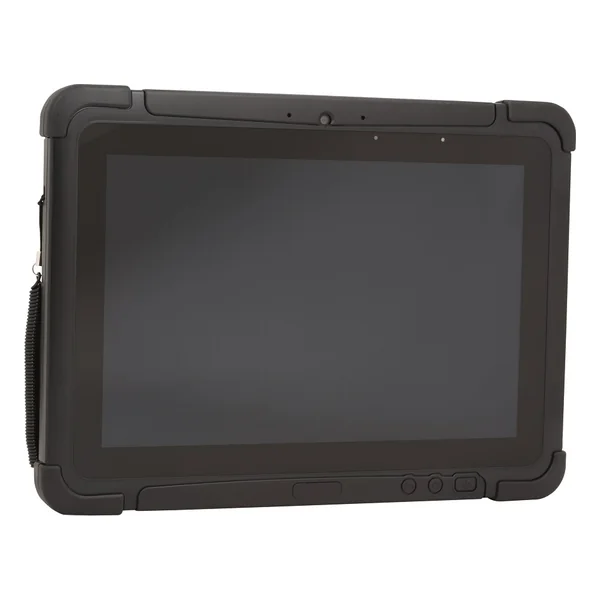
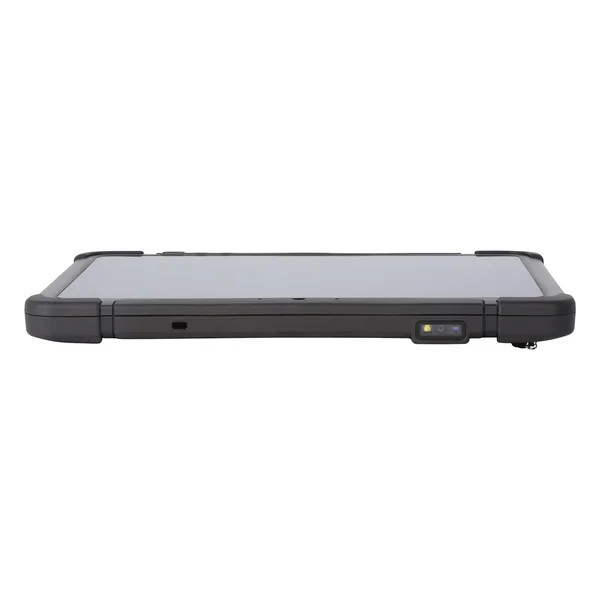
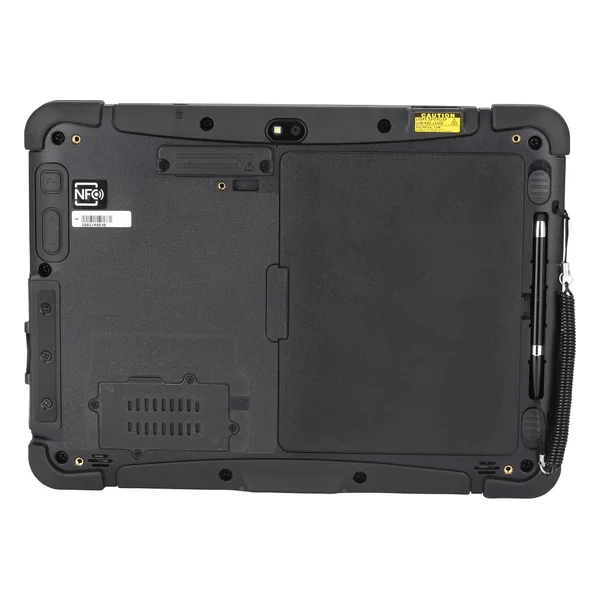
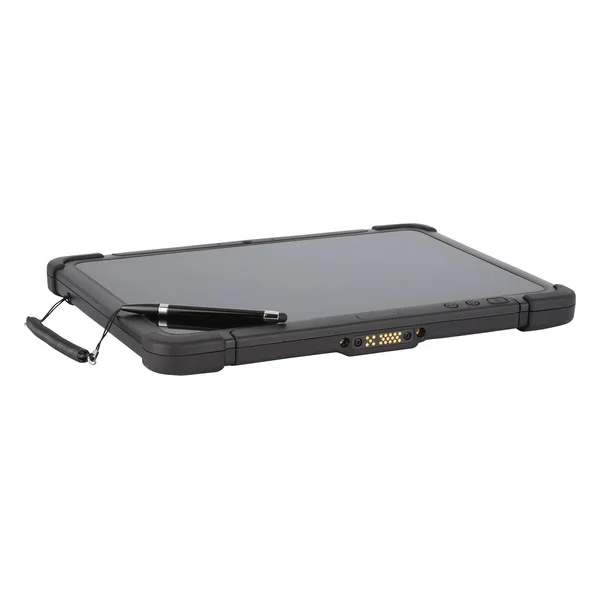
Batteries (2)
| Image | Name | SKU | Price |
|---|---|---|---|
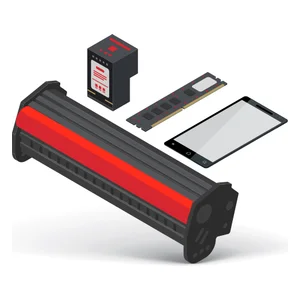 | RT10 STD Battery / TAA compliant | RT10-BAT-STD1 | Original price was: $322.00.$274.00Current price is: $274.00. |
| RT10 Extended Battery / TAA compliant | RT10-BAT-EXT1 | Original price was: $414.00.$352.00Current price is: $352.00. |
Docks (2)
| Image | Name | SKU | Price |
|---|---|---|---|
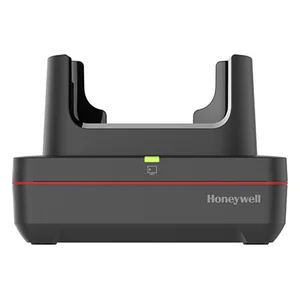 | RT10 Office dock Communications dock, no power cord included, TAA compliant | RT10-CD | Original price was: $838.00.$712.00Current price is: $712.00. |
| RT10 Display Dock conn external monitor, No power cord included, TAA compliant | RT10-DD | Original price was: $889.00.$756.00Current price is: $756.00. |
Hand Straps (1)
| Image | Name | SKU | Price |
|---|---|---|---|
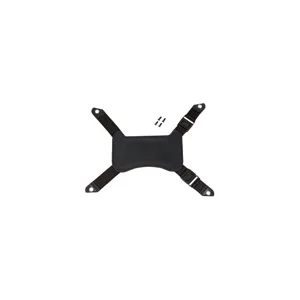 | RT10 Hand Strap | RT10-HS-1 | Original price was: $95.00.$81.00Current price is: $81.00. |
Keyboards (4)
| Image | Name | SKU | Price |
|---|---|---|---|
| Honeywell Rugged Keyboard, 86 Keys, Rubber Coating, Coiled Cord, LED Backlighting, Integrated Pointing Device, DB9 connector, use with VMCs and Tablets | 9000286KEYBRD | Original price was: $846.00.$719.00Current price is: $719.00. | |
| Honeywell Rugged Keyboard, 86 Keys, Rubber Coating, Coiled Cord, LED Backlighting, Integrated Pointing Device, USB Type A connector, use with VMCs and Tablets | 9000186KEYBRD | Original price was: $846.00.$719.00Current price is: $719.00. | |
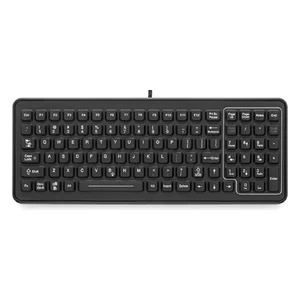 | Rugged Keyboard, 102 Keys, Backlit, desktop or vehicle-mount, DB9 connector | 340-053-003-DB9 | Original price was: $1,163.00.$989.00Current price is: $989.00. |
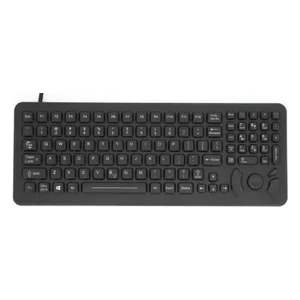 | Rugged Keyboard, 101 Keys, Backlit, cursor control, desktop or vehicle-mount, DB9 connector | 340-053-003-DB9P | Original price was: $1,225.00.$1,042.00Current price is: $1,042.00. |
Mounting Hardware and Stands (10)
| Image | Name | SKU | Price |
|---|---|---|---|
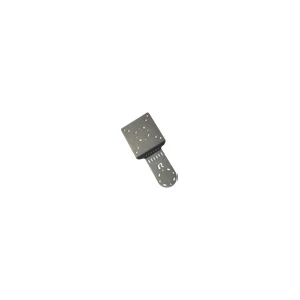
 | RT10, RAM, KEYBOARD PLATE ADAPTER | RT10-KEYBD-PLATE | Original price was: $46.00.$39.00Current price is: $39.00. |
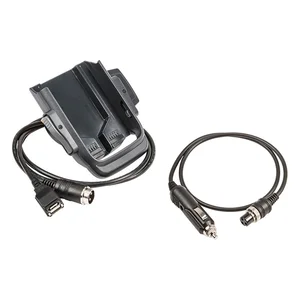 | RAM, BASE, SIZE ́C ́ 1.5 ́ BALL, Round 2.5 ́ Base Plate w/ AMPS 4-hole pattern & 3-hole 120-degree pattern | VX89A041RAMBALL | Original price was: $81.00.$69.00Current price is: $69.00. |
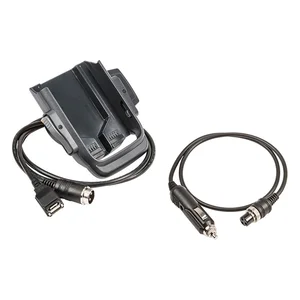 | RAM, BASE, SIZE ́D ́ 2.25 ́ Ball, 3.69 ́ Round Plate | VX89A030RAMBALL | Original price was: $100.00.$85.00Current price is: $85.00. |
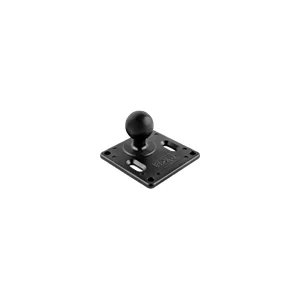 | RT10, RAM, BASE, SIZE ́C ́ 1.5 ́ BALL, Square Base Plate W/ 75x75mm VESA hole pattern | RT10-MNT-RAM-C | Original price was: $111.00.$94.00Current price is: $94.00. |
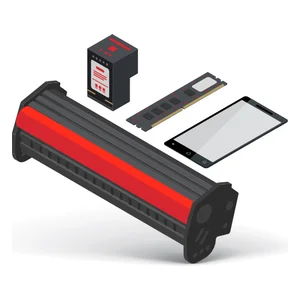 | RT10, RAM, BASE, SIZE ́D ́ 2.25 ́ BALL, 3.625 ́ SQUARE BASE PLATE with 75mm X 75mm VESA hole pattern. | RT10-MNT-RAM | Original price was: $111.00.$94.00Current price is: $94.00. |
| RAM, BASE, SIZE ́D ́ 2.5 ́ Ball, RAIL CLAMP for 2.50 ́ WID | VX89A031RAMBALL | Original price was: $141.00.$120.00Current price is: $120.00. |
| RAM, ARM, SIZE ́D ́ SOCKETS, SHORT 5 ́ LENGTH | VX89A502RAMARM | Original price was: $165.00.$140.00Current price is: $140.00. |
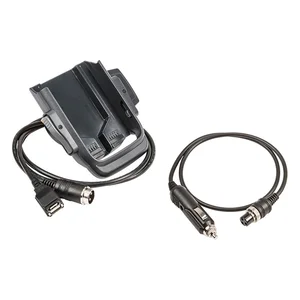 | RAM, BASE, SIZE ́D ́ Ball, 4.75 ́ Square Base Plate w/ 100x100mm VESA hole pattern | VX89A032RAMBALL | Original price was: $165.00.$141.00Current price is: $141.00. |
| RAM, ARM, SIZE ́D ́ SOCKETS, MEDIUM 8.5 ́ LENGTH | VX89A501RAMARM | Original price was: $230.00.$196.00Current price is: $196.00. |
| RAM, ARM, SIZE ́D ́ SOCKETS, LONG 13 ́ LENGTH | VX89A503RAMARM | Original price was: $377.00.$320.00Current price is: $320.00. |
Mounts and Brackets (5)
Power Supplies and Cords (12)
| Image | Name | SKU | Price |
|---|---|---|---|
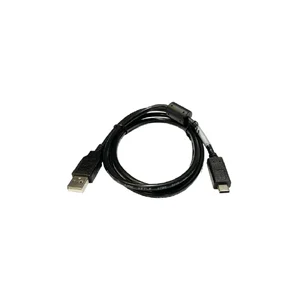 | Charging and USB communication cable for EDA52/CT40XP / CT45-XP / IH25 . USB A/M to USB type C, 120 cm | CBL-500-120-S00-05 | Original price was: $19.00.$16.00Current price is: $16.00. |
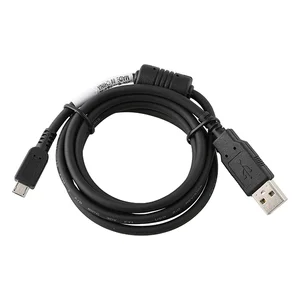 | C6 type power cable USA, TAA compliant | RT10-PWR-CABLE-US | Original price was: $33.00.$28.00Current price is: $28.00. |
| C6 type power cable, UK 3-blade, TAA compliant | RT10-PWR-CABLE-UK | Original price was: $32.00.$28.00Current price is: $28.00. | |
| C6 type power cable, Europe, TAA compliant | RT10-PWR-CABLE-EU | Original price was: $38.00.$32.00Current price is: $32.00. | |
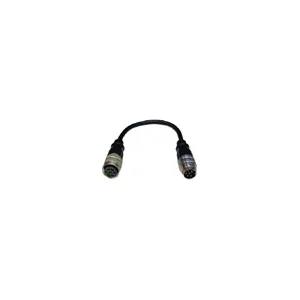 | RT10 ignition cable. Already included in RT10-EVD and RT10-EVC | RT10-IGNITION-CABL | Original price was: $117.00.$65.00Current price is: $65.00. |
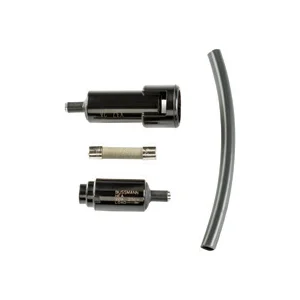 | VM1, VM2, VM3 IN-LINE FUSE KIT | VM3055FUSE | Original price was: $85.00.$73.00Current price is: $73.00. |
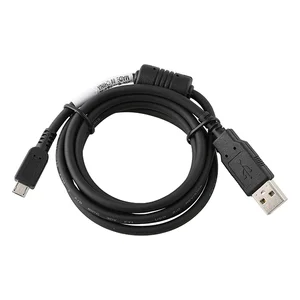 | RT10 Power Supply, TAA compliant | RT10-PWR | Original price was: $133.00.$113.00Current price is: $113.00. |
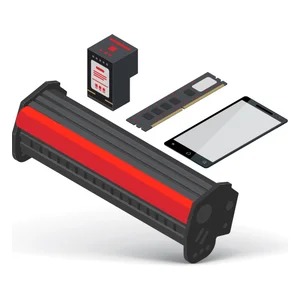 | RT10 Vehicle charger w/Cigarette header | RT10-MC | Original price was: $180.00.$153.00Current price is: $153.00. |
| RT10. VMC pigtail adapter cable. To convert Thor VM series power supply connections to the RT10-VD or RT10-VC 3-pin terminal block power input. | RT10-VM-POWER-CVRT | Original price was: $192.00.$163.00Current price is: $163.00. |
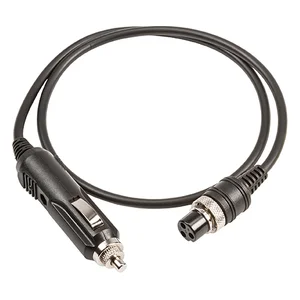 | VM Series Screen Blanking Box Cable 1, 8m (6 ft) | VM1080CABLE | Original price was: $204.00.$174.00Current price is: $174.00. |
| RT710, VM1, VM2, VM3, VM3A DC POWER CABLE (SPARE) WITH IN-LINE FUSE KIT | VM3054CABLE | Original price was: $261.00.$222.00Current price is: $222.00. |
| RT10 2-Bay Battery Charger Kit includes: 1x 2-bay battery charger, 1x 19V AC adapter. Requires country-specific cord. / TAA compliant | RT10-BC-2 | Original price was: $654.00.$556.00Current price is: $556.00. |
Repair Parts (1)
| Image | Name | SKU | Price |
|---|---|---|---|
 | Keybd, 101 Key, Backlit SLK-101 Win RoHS (PS/2, Windows layout) | 340-053-003 | $1,125.00 |
Shoulder Straps (1)
| Image | Name | SKU | Price |
|---|---|---|---|
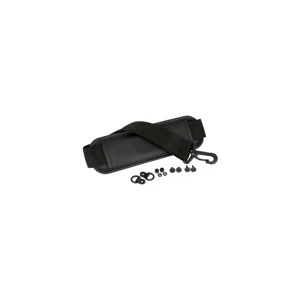 | RT10 Shoulder Strap | RT10-SS-1 | Original price was: $94.00.$80.00Current price is: $80.00. |
Vehicle Cradles and Chargers (11)
| Image | Name | SKU | Price |
|---|---|---|---|
| RT10 VEHICLE DOCK PUSH RELEASE LATCH | RT10-DOCK-RELEASE | Original price was: $17.00.$14.00Current price is: $14.00. | |
| RT10 RAM Hardwire charger includes male 5.5mm barrel connector; 20V-60V DC input range, 12VDC output | RT10-RAM-PWR-V9 | Original price was: $79.00.$67.00Current price is: $67.00. | |
| RT10 RAM Hardwire charger includes male 5.5mm barrel connector; 10V-32V DC input range, 12VDC output | RT10-RAM-PWR-V10 | Original price was: $99.00.$84.00Current price is: $84.00. | |
| RT10, RAM, Unpowered Vehicle Dock, Key Lock, (2) USB Type-A Port. Requires power supply RT10-RAM-PWR-V9 or RT10-RAM-PWR-V10. | RT10-RAMDOK-2USB | Original price was: $448.00.$381.00Current price is: $381.00. | |
| RT10, RAM, Unpowered Vehicle Dock, Key Lock, (1) USB Type-A & (1) Serial Port. Requires power supply RT10-RAM-PWR-V9 or RT10-RAM-PWR-V10. | RT10-RAMDOK-9PD2KL | Original price was: $473.00.$402.00Current price is: $402.00. | |
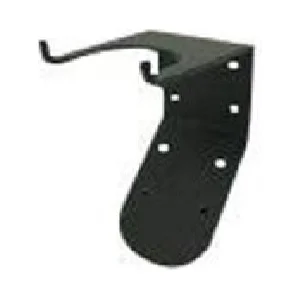 | RT10 Vehicle Cradle | RT10-VC | Original price was: $810.00.$689.00Current price is: $689.00. |
| RT10 Enhanced Vehicle Cradle | RT10-EVC | Original price was: $1,173.00.$997.00Current price is: $997.00. |
| RT10 Vehicle Docking w/power cable | RT10-VD | Original price was: $1,192.00.$1,013.00Current price is: $1,013.00. |
| ALUMINUM BACKED VEHICLE CRADLE | RT10-AVC | Original price was: $1,305.00.$1,109.00Current price is: $1,109.00. | |
| RT10 Enhanced Vehicle Dock | RT10-EVD | Original price was: $1,637.00.$1,392.00Current price is: $1,392.00. |
| RT10, Advanced Vehicel Dock w/ metal housing | RT10-AVD | Original price was: $1,784.00.$1,517.00Current price is: $1,517.00. |
Other (4)
| Image | Name | SKU | Price |
|---|---|---|---|
 | RT10 Screen Protector | RT10-SCREEN-FILM1 | Original price was: $33.00.$28.00Current price is: $28.00. |
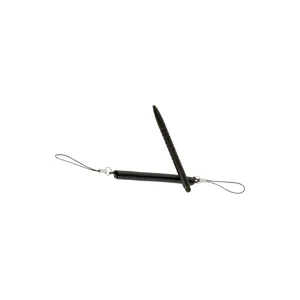 | RT10 Capacitive Stylus with tether | RT10-STY-1 | Original price was: $71.00.$61.00Current price is: $61.00. |
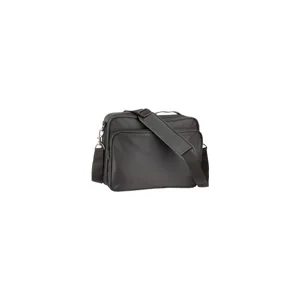 | RT10 Carrying Case | RT10-CASE | Original price was: $203.00.$173.00Current price is: $173.00. |
 | RT10 Smart Card Reader / TAA compliant | RT10-CAC | Original price was: $554.00.$471.00Current price is: $471.00. |