Cases and Protectors (1)
| Image | Name | SKU | Price |
|---|---|---|---|
| Holster, CK7x w/o Scan Handle | 815-068-001 | Original price was: $173.00.$147.00Current price is: $147.00. |
Covers (1)
| Image | Name | SKU | Price |
|---|---|---|---|
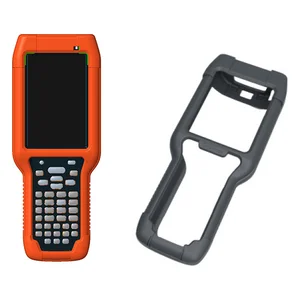 | Protective Boot, CK71/75 (Use with or without handle, Not compatible with holster or vehicle dock) | 203-961-001 | Original price was: $84.00.$72.00Current price is: $72.00. |
Docks (4)
| Image | Name | SKU | Price |
|---|---|---|---|
| Desktop dock, CK70/71/75, supports one computer and 2 batteries, provides USB host+client, Requires country specific power cord, TAA compliant | DX1A02B20 | Original price was: $576.00.$490.00Current price is: $490.00. | |
| Dual Dock Ethernet CK70/71/75 NA Pwr Cord Level VI, TAA compliant | DX2A12210 | Original price was: $1,173.00.$997.00Current price is: $997.00. | |
| Quad Charge Dock, CK70/71/75, rrequires country specific power cord, TAA compliant | DX4A2222200 | Original price was: $1,284.00.$1,092.00Current price is: $1,092.00. | |
| Quad Dock Chg Only CK70/71/75 NA Pwr Cord Global Level VI Certified, TAA compliant | DX4A2222210 | Original price was: $1,304.00.$1,108.00Current price is: $1,108.00. |
Interface Cables (1)
| Image | Name | SKU | Price |
|---|---|---|---|
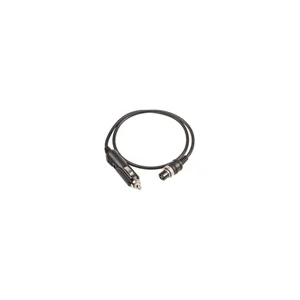 | A 72in (182.88 cm) cable for connection of Vehicle Dock to fuse block, with spade lugs and 3-pin connector. Input volt: 12-30V DC. (If direct connection to fuse block not available, requires use of 203-803-001 fuse block power kit.) | 226-109-003 | Original price was: $116.00.$98.00Current price is: $98.00. |
Keyboards (2)
| Image | Name | SKU | Price |
|---|---|---|---|
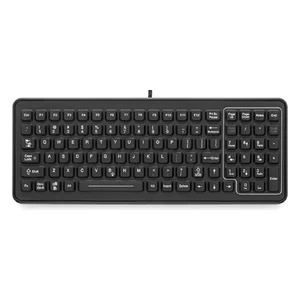 | Rugged Keyboard, 102 Keys, Backlit, desktop or vehicle-mount, DB9 connector | 340-053-003-DB9 | Original price was: $1,163.00.$989.00Current price is: $989.00. |
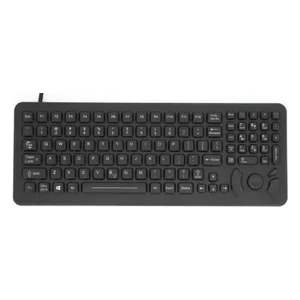 | Rugged Keyboard, 101 Keys, Backlit, cursor control, desktop or vehicle-mount, DB9 connector | 340-053-003-DB9P | Original price was: $1,225.00.$1,042.00Current price is: $1,042.00. |
Mounts and Brackets (1)
| Image | Name | SKU | Price |
|---|---|---|---|
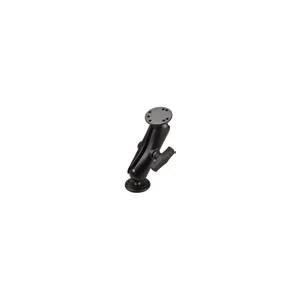 | RAM, MOUNTING KIT, one pivot and two mounting bases with 1.5 ́ ball. Requires customer-supplied hardware to secure mount to vehicle. CT70/CT47/CT40/CT45 | 805-638-001 | Original price was: $215.00.$183.00Current price is: $183.00. |
Pistol Grips (1)
| Image | Name | SKU | Price |
|---|---|---|---|
| CK71 / CK75 Scan Handle | 805-836-001 | Original price was: $289.00.$246.00Current price is: $246.00. |
Power Supplies and Cords (2)
| Image | Name | SKU | Price |
|---|---|---|---|
| Auto Adapter, V-Docks, 3S Circular, RoHS (Power Option: Connects Vehicle Dock to vehicle accessory port / cigarette lighter port) | 852-057-005 | Original price was: $203.00.$172.00Current price is: $172.00. | |
| Vehicle Power Adapter, 70/75 Series 3-pin (3-pin connector for use with 70/75 Series Snap-on Adapters) | 852-071-001 | Original price was: $318.00.$271.00Current price is: $271.00. |
Repair Parts (2)
| Image | Name | SKU | Price |
|---|---|---|---|
 | Kit, Handstrap, CK70/71/75 (5/pk) (Contains five (5) replacement handstraps for CK70/71) | 203-929-001 | $125.00 |
| KIT, Short Handstrap CK70/71/75 (5/pk) (Contains five (5) replacement handstraps for CK70/71equiped with MSR) | 203-948-001 | $151.00 |
Vehicle Cradles and Chargers (2)
| Image | Name | SKU | Price |
|---|---|---|---|
| CK70 / 71 / 75 Vehicle Holder ( Requires 805-638-001 Mounting Kit.) | 805-673-001 | Original price was: $300.00.$255.00Current price is: $255.00. | |
| CK70 / 71 / 75 Vehicle Dock (Provides USB and RS232 receptacles, Requires 805-638-001 Mounting Kit) | 871-035-001 | Original price was: $981.00.$834.00Current price is: $834.00. |