Batteries (1)
| Image | Name | SKU | Price |
|---|---|---|---|
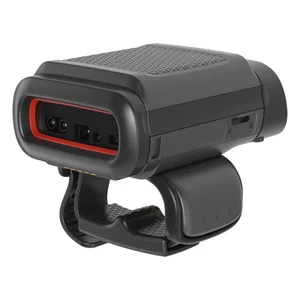
 | 8680I Wearable Mini Mobile Extended Battery. One battery per pack. | BAT-SCN02A | Original price was: $195.00.$107.00Current price is: $107.00. |
Battery Chargers (2)
| Image | Name | SKU | Price |
|---|---|---|---|
 | 4 Bay 8680i Battery Charger with power supply. Charges battery only when removed from 8680i. Compatible with Extended or Slim batteries. Region-specific cord must be ordered separately. | MB4-BAT-SCN02 | Original price was: $739.00.$407.00Current price is: $407.00. |
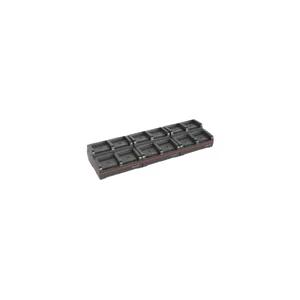 | 12 Bay 8680i Battery Charger with power supply. Charges battery only when removed from 8680i. Compatible with Extended or Slim batteries. Region-specific cord must be ordered separately. | MB12-BAT-SCN02 | Original price was: $1,847.00.$1,016.00Current price is: $1,016.00. |
Docks, Cradles and Chargers (1)
| Image | Name | SKU | Price |
|---|---|---|---|
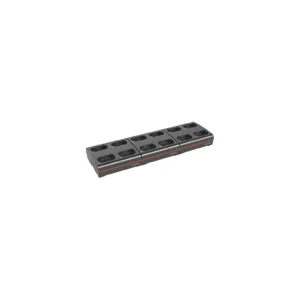 | 12 Bay 8680i Wearable Mini Mobile Charger with power supply. Charges complete 8680i unit with Extended or Slim battery installed. Region-specific cord must be ordered separately. | MB12-SCN02 | Original price was: $2,091.00.$1,150.00Current price is: $1,150.00. |
Hand Straps (2)
| Image | Name | SKU | Price |
|---|---|---|---|
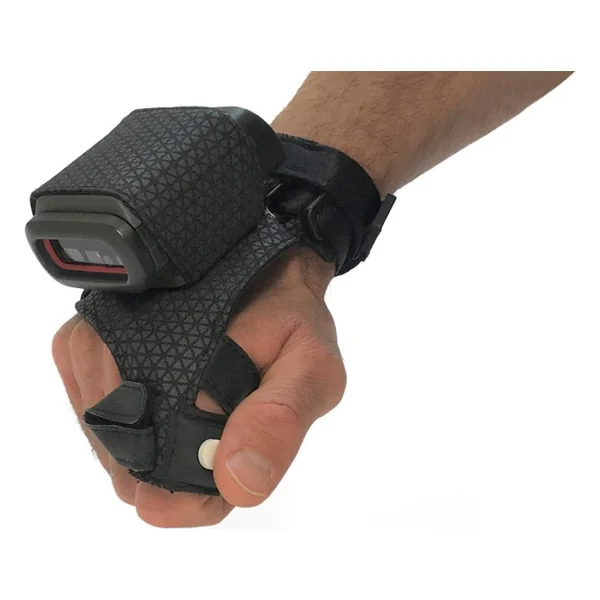
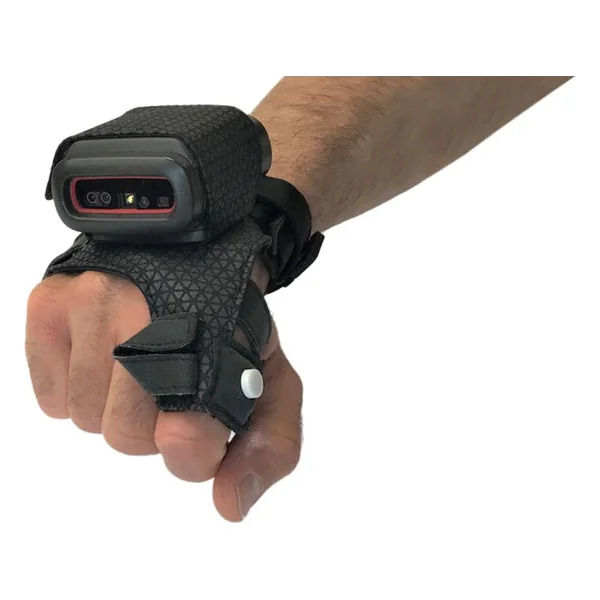
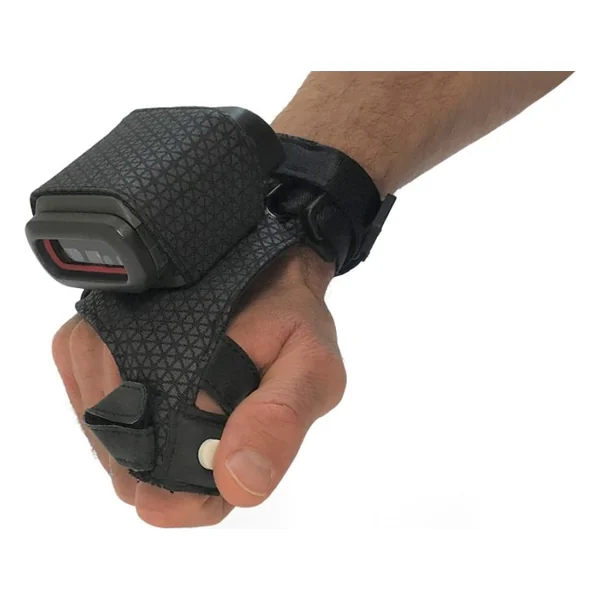
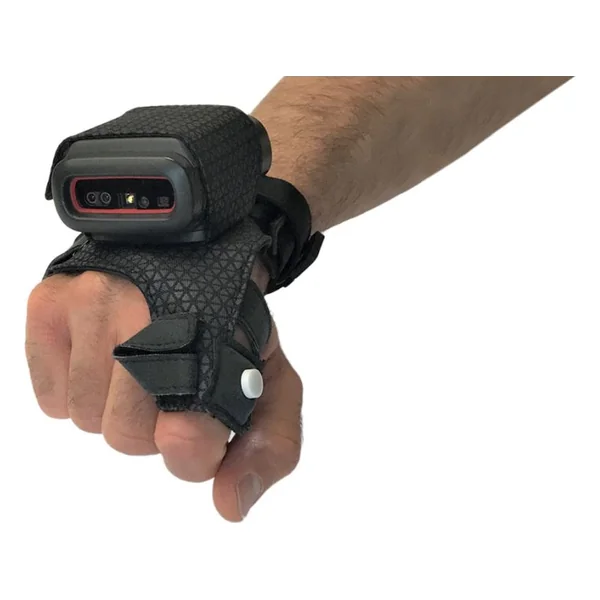
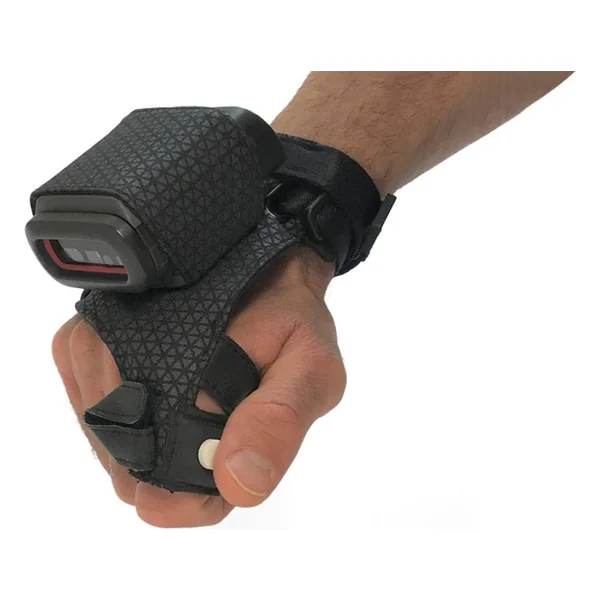
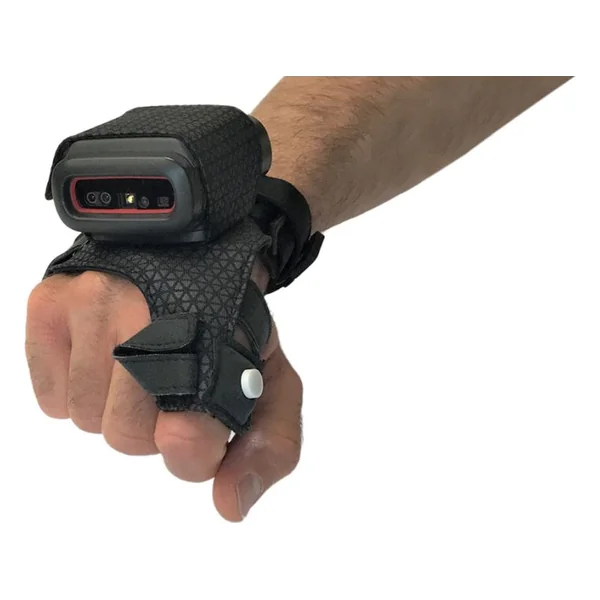
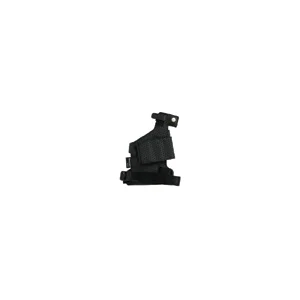 | 8680i Left hand strap glove with device harness, one size, package of 10, trigger on index finger). Glove mount required to attach to 8680i must be ordered separately. | 8680I505LHSGH | Original price was: $1,458.00.$802.00Current price is: $802.00. |
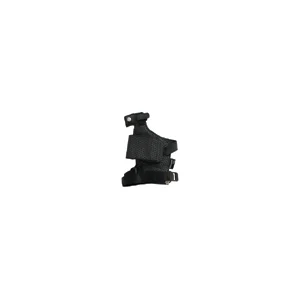 | 8680i Right hand strap glove with device harness, one size, package of 10, trigger on index finger. Glove mount required to attach to 8680i must be ordered separately. | 8680I505RHSGH | Original price was: $1,458.00.$802.00Current price is: $802.00. |
Interface Cables (1)
| Image | Name | SKU | Price |
|---|---|---|---|
| Cable: power cord, power supply to AC outlet, straight (C13), 1.8m (6.0ft) | 77900506E | Original price was: $18.00.$16.00Current price is: $16.00. |
Multi-Slot Cradles (1)
| Image | Name | SKU | Price |
|---|---|---|---|
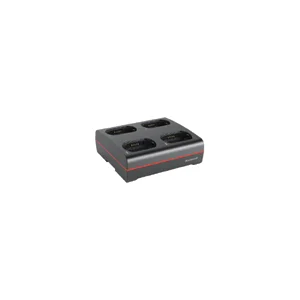 | 4 Bay 8680i Wearable Mini Mobile Charger with power supply. Charges complete 8680i unit with Extended or Slim battery installed. Region-specific cord must be ordered separately. | MB4-SCN02 | Original price was: $718.00.$395.00Current price is: $395.00. |
Power Supplies and Cords (4)
| Image | Name | SKU | Price |
|---|---|---|---|
| Cable, power cord, AC outlet to power supply/device, straight (US type B grounded 3 prong, C13), 2.5m (8.2ft) | 130063 | Original price was: $16.00.$14.00Current price is: $14.00. | |
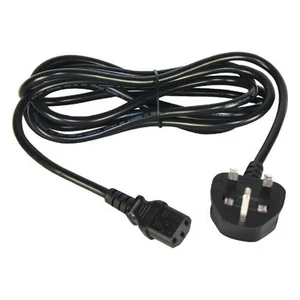 | Cable: power cord, power supply to AC outlet, straight (UK type G, C13), 2.5 m (8.2 ft) | 77900507E | Original price was: $29.00.$25.00Current price is: $25.00. |
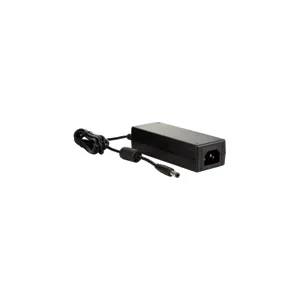 | Power Adapter, 12V 3A for CT50/CT60 HB/EB/QBC, CN80, 8680i/8690i/8675i 4-bay, 8675i 8-bay bat charger, 1962/2105 batt charger, CS32 charge base (up to 3 devices), Ethernet base and charge-only home base. Region-specific power cord required, sold separately. | 50121666-001 | Original price was: $45.00.$38.00Current price is: $38.00. |
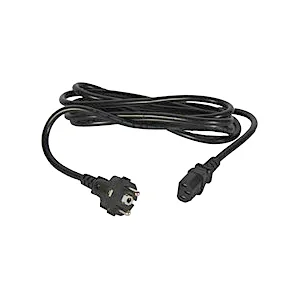 | Cable: power cord, power supply to AC outlet, straight, (EU type C, C13), IEC320-C13, 2.5 m (8.2 ft) | 77900508E | Original price was: $55.00.$47.00Current price is: $47.00. |
Repair Parts (1)
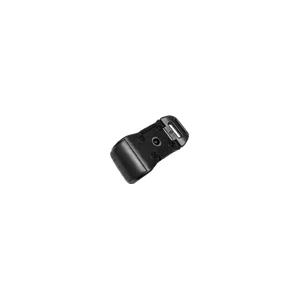
Straps (6)
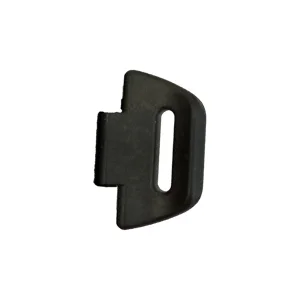
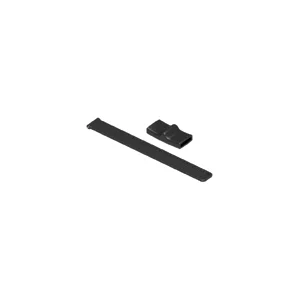
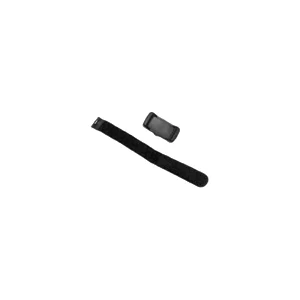
Upgrade Kits (3)
| Image | Name | SKU | Price |
|---|---|---|---|
 | Access Point: Class 2 Bluetooth, 10m (33 ́), up to 7 scanners can be connected, RS232/USB/KBW/IBM (cable sold separately) | AP-010BT-07N | Original price was: $495.00.$273.00Current price is: $273.00. |
 | Access Point Class 1 Bluetooth, 100m (300'), up to 7 scanners can be connected RS232/USB/KBW (cables sold separately) | AP-100BT-07N | Original price was: $510.00.$281.00Current price is: $281.00. |
| Access Point for Granit 1981i - Class 1 Bluetooth, 100m (300'), up to 7 scanners can be connected RS232/USB/KBW (cables sold separately) | AP05-100BT-07N | Original price was: $556.00.$306.00Current price is: $306.00. |
Wearable Holders (4)
| Image | Name | SKU | Price |
|---|---|---|---|
 | 8680i/8690i pack of 20 replacement pivots for trigger assembly. | 8680I505PIVOT20 | Original price was: $73.00.$40.00Current price is: $40.00. |
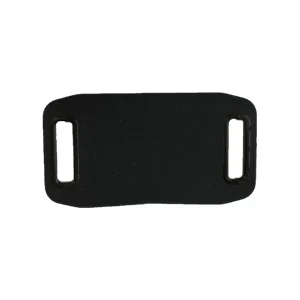 | 8690i/8680i triggered ring comfort pad. Pack of 10. | 8690I505CPAD10 | Original price was: $79.00.$43.00Current price is: $43.00. |
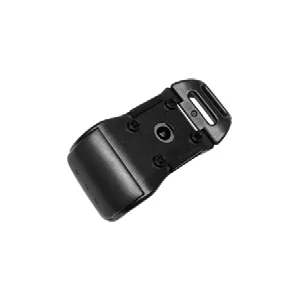 | 8680i/8690i Reversible trigger and pivot assembly for triggered ring configurations (package of 10) | 8690ITRGR10 | Original price was: $691.00.$380.00Current price is: $380.00. |
 | 8680i Glove mount (package of 10). 8680i gloves purchased separately. | 8680I505GMT | Original price was: $1,230.00.$676.00Current price is: $676.00. |