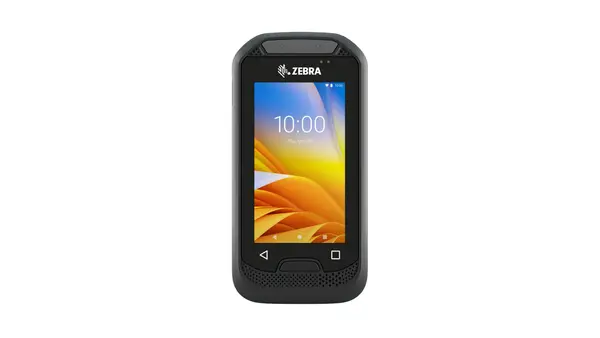
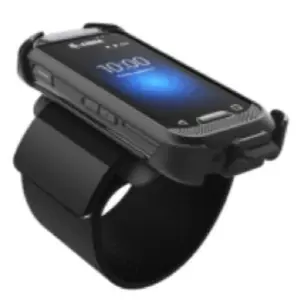
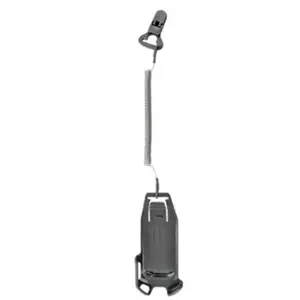
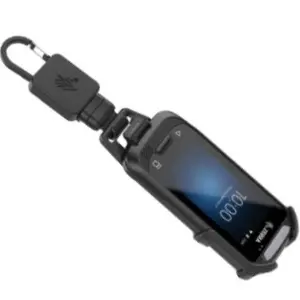
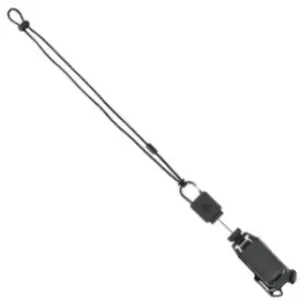
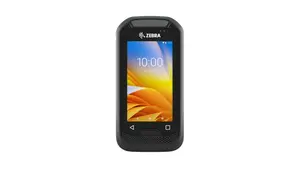
The Zebra EC30 Enterprise Companion is an ultra-compact, fully functional mobile computing device that’s small enough to fit in the palm of a hand, worn on the wrist or strung around the neck like a smart badge. Industrial applications include retail, health care, warehousing, field service and maintenance, hospitality and many others.
Key applications of the EC30 include basic barcode scanning, assisted selling and WLAN-based voice and data communications. Employees equipped with the EC30 can query product information, manage inventory, communicate with fellow staff members via PTT or other VoIP apps, receive and track tasks and much more.
The EC30 is built on the same platform as Zebra’s TC52 and TC57 mobile computing devices; applications written for Zebra’s TC-series should run on the EC30. However, the EC30’s 3-inch display is about half the size of most others, so apps often require adjustments to ensure a pleasant user experience.
These and other useful links can be found in the Also See section at the bottom of this document.
According to research published in 2017 by UX Matters , a large majority of people use only a thumb for input, and fewer than half hold the phone with one hand. Research also showed that device-holding position can vary for an individual depending on needs of the app, size, shape and orientation of the device and the type and context of the input required.
UX Matters found that people prefer to tap on and view content in the center of the screen. Tap accuracy varies widely depending on screen location, something to keep in mind when positioning an app’s touch zones.
Zebra recommends using Google Material Design tools and its design goals and principles as a foundation for starting new apps.
When planning the app’s Artboard, the following specs and guidelines might be helpful.
Apps created for Zebra’s TC-series devices can be expected to execute perfectly well on the EC30. However, UIs designed for the 5+ inch TC-series displays often present usability issues when displayed on the EC30’s 3-inch screen. These can include truncated screens or controls, buttons too small to touch and/or text too small to read. Zebra recommends starting with the steps below when migrating apps to the EC30 .
Keep in mind that apps designed for TC-series devices might contain functionality–WWAN communications, for example–not supported on the EC30. To avoid malfunctions, remove unused features from EC30-migrated apps .
Similarly, TC-series apps also might implement use cases or journeys that don’t apply to the EC30. It’s therefore a good idea to carefully consider the EC30-specific use cases and prioritize the top features and/or content of the EC30 version of the app.
While a UX might be improved by displaying all app functions and info on a single screen, the EC30’s small screen might make such a layout hard to use. It’s therefore advisable to implement the most important functions and information for each user task on separate, sequential screens and “tuck away” supplementary information in a menu, “info” button or other access control.
Part of an app’s UX might live outside of the app itself. Take a holistic view regarding how the EC30 app interacts with other devices or software components . For example, by implementing scan-to-login, an EC30 app could eliminate the need to use the soft input panel for logging a user into an external system.
Since it’s likely that the EC30-targeted app is being ported from a device with higher resolution than the EC30’s 480 x 854 pixels, it’s probably better to create all new UI layouts than to squeeze existing ones onto a smaller screen. A common EC30 UI issue comes when inputting text when in portrait mode ; the narrow keypad doesn’t provide enough space between keys. One solution is to switch device orientation to landscape mode whenever text input is required, and to switch back again when finished.
It’s easier to type on a wider SIP.
In essence, toggling landscape mode for text entry requires that the activity class implement the following listeners for touch and editor actions…
To avoid manual text input through the SIP, implement drop-down “spinner” menus or “left-right navigators” whenever possible. Use the setItemList API to provide the list of items and the getSelectedItem API to get the text for the selected item text.
The EC30 implements embedded tools to simplify changes to display size and font scaling during development. Accessed through the “Power-off” menu when developer options are enabled on the device, the tools are designed to simplify changes to the UX for testing and can be easily disabled before device deployment.
The EC30 falls to the category of small-screen devices, and a migrated app will fail to launch if the “smallScreens” attribute in its Android manifest file is to “false.
The EC30’s 1200 mAh Li-Ion PowerPrecision+ battery is rated to provide a full 10 hours of continuous operation. However, battery performance varies greatly depending on device settings, especially those of the display panel and backlight.