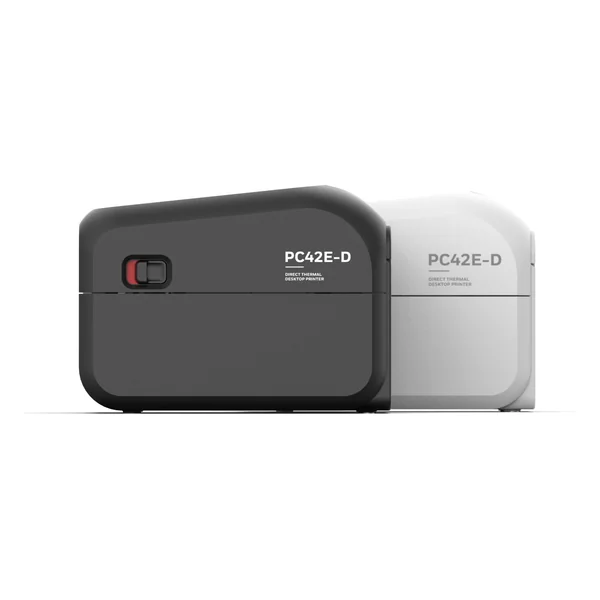
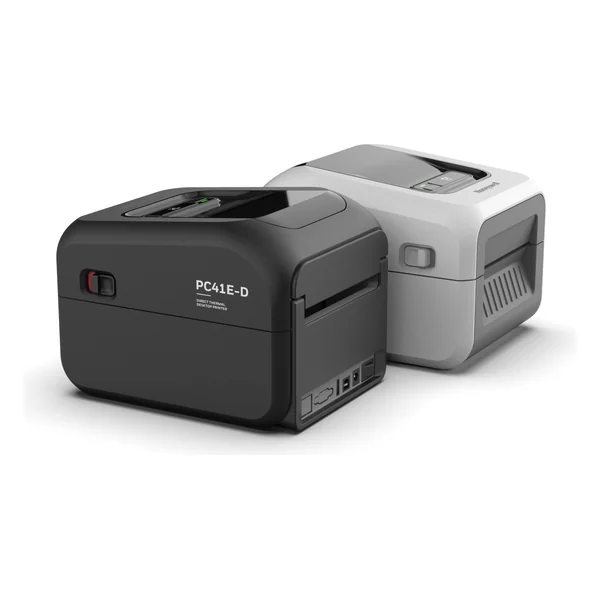
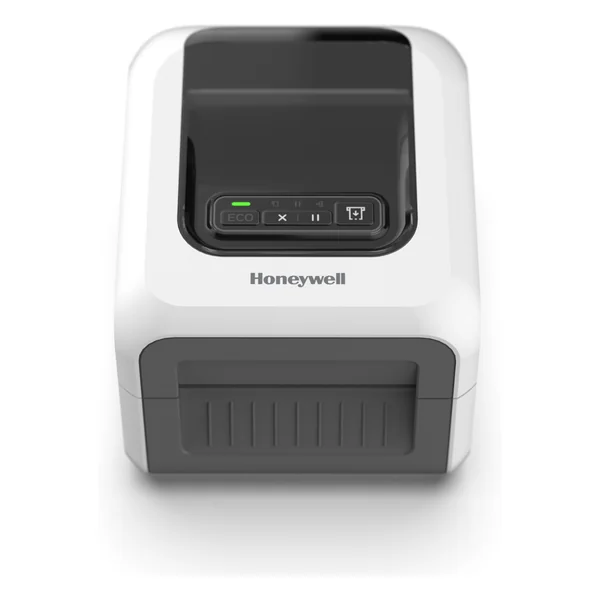
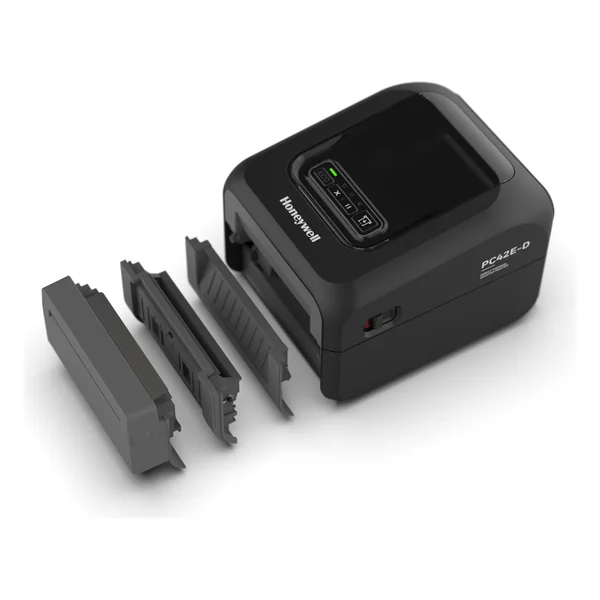
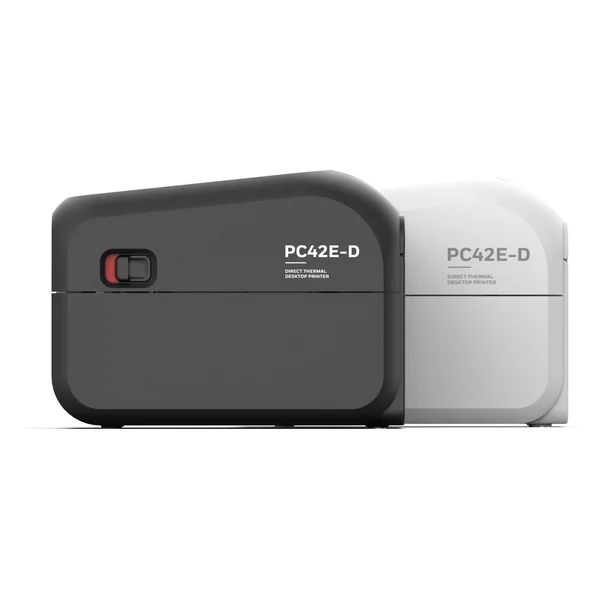
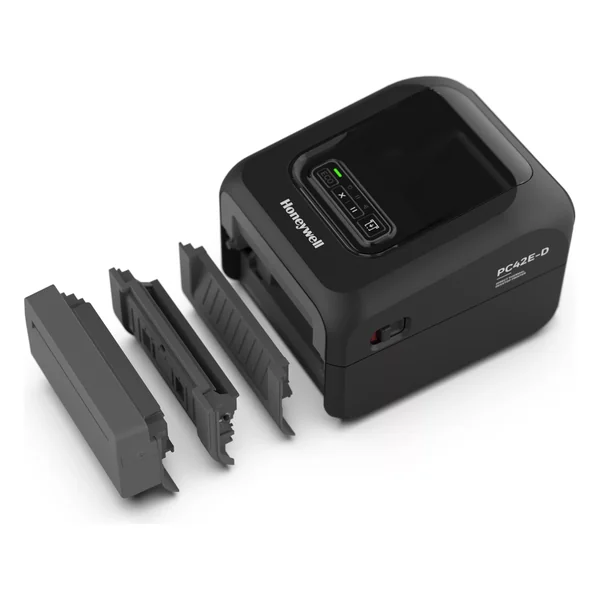
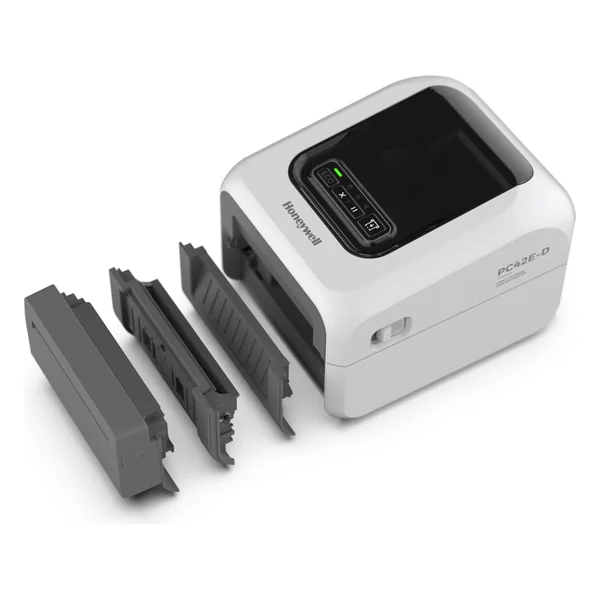
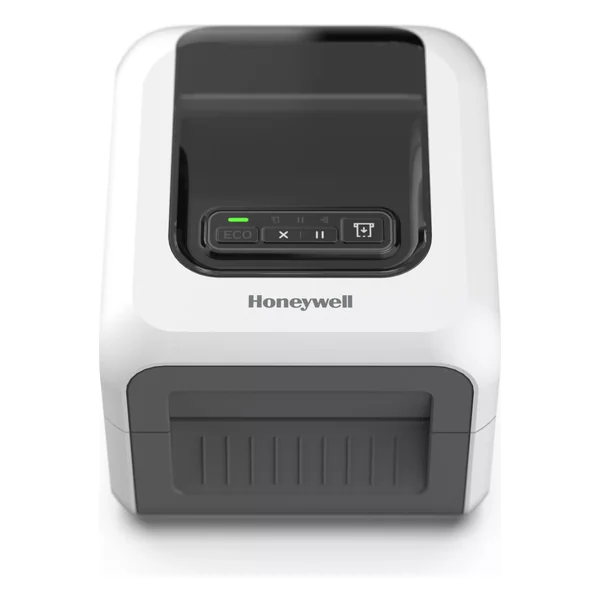
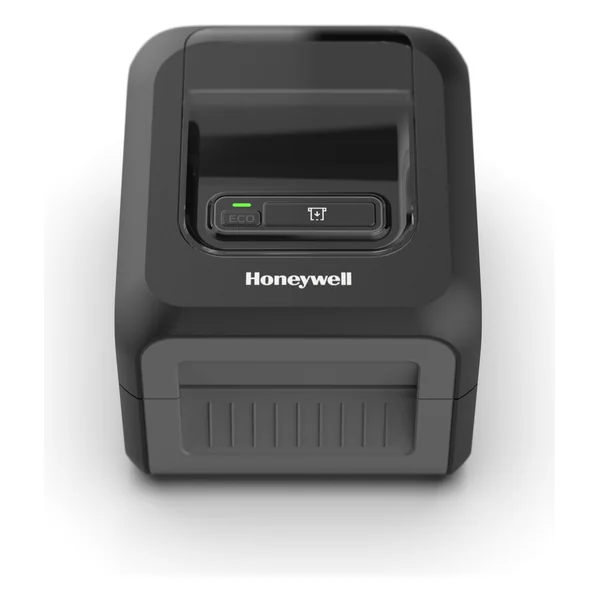
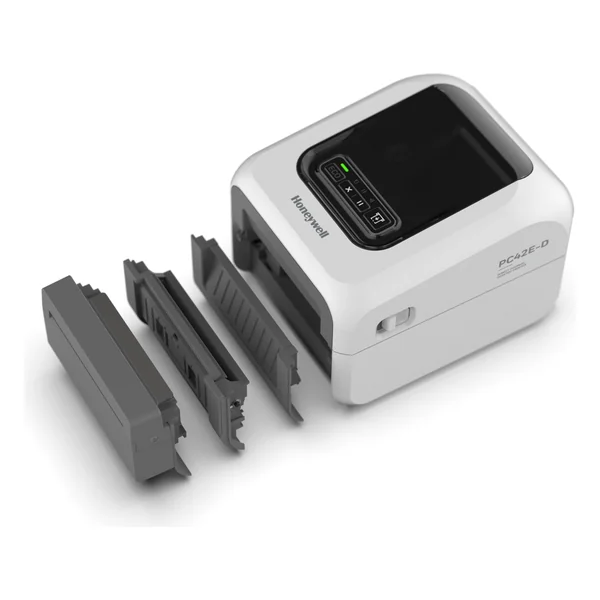
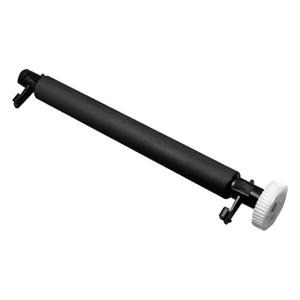
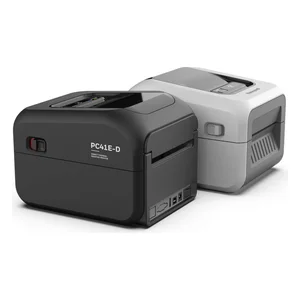
2 Printer Features Control Panel Latch Media Window Tear Bar Ethernet Port (PC42E-D only) Serial Port (PC42E-D only) USB Host Port USB Device Port Power Port Power Switch External Media Feed Slot Front Back 3 Media Holder Locking Tab Platen Roller Media Sensor Media Holder Printhead Internal Media Core Adapter (0.5, 1.0, 1.5 in. 4 Set up Printer Load Media 1 2 3 4 5 7 6 5 Black mark media Cloth tag and other media Gap media 6 Power on Printer 8 9 Note: Make sure the power switch of the printer is turned off before connecting the power cord. 7 Control Panel PC41E-D PC42E-D ECO button Status LED Print/Feed button ECO button Status LED Print/Feed button Supplies indicator Pause indicator Network indicator Cancel button Pause button 8 Status LED The Status LED turns green, amber, or red to indicate the cur- rent status of the printer. LED State Description Off Power is turned off. Green The printer is idle and waiting for the next print job. Green (blinking) (PC41E-D only) The printer is starting up.
Press the Print/Feed button to resume printing or press and hold the Print/Feed button for three seconds to cancel the print job. Green (blinking from start up) The printer is experiencing a memory error.
For more information, see the PC41E-D/PC42E-D User Guide. Green (blinking with Green Network indicator) (PC42E-D only) Data is being transferred by Wi-Fi or Ethernet.
The simulator (ZSim and ESim) is starting up. Green (blinking slow) In peel off mode, a printed label is available in the output slot. The printer will not print another label until the label in the output slot is removed. 9 Amber (PC41E-D only) The printhead is too hot. Wait for the printhead to cool down to an acceptable temperature before it can resume printing. Amber (blinking) The printer is upgrading its firmware from an inserted USB flash drive. Remove the USB flash drive after the LED turns solid green. Amber (blinking slow) The print job includes a font that is not installed or includes a location that is outside the available print area. Red (blinking) The printer is in Error mode. The printer may be out of media, have the printhead lifted, have a label obstructing the printing path, or you may not have performed a testfeed (hold Print/Feed button until several labels print). After you have fixed the error, printing will resume automatically. Red (blinking with blinking red Pause indicator) (PC42E-D only) Printhead over temperature.
Red and Green (blinking alternately) The printer is experiencing a hardware issue.
For more information, see the PC41E-D/ PC42E-D User Guide. LED State Description 10 Print/Feed Button Use the Print/Feed button to feed and calibrate media. For the PC41E-D, you can also use the button to pause and cancel print jobs. Print/Feed Button Action Description Press and hold the Print/Feed button (while the printer is starting up) The printer calibrates the media, prints a configuration label, and then lets you select the printer command language. Press the Print/Feed button when the printer command language you want to use prints out. Press and hold the Print/Feed button for two seconds and then release (when the printer is idle) The printer prints out several labels to calibrate the media sensor (testfeed). Press and hold the Print/Feed button for six seconds (when the printer is idle) The printer prints out several labels (testfeed) and then prints the configuration label. Press and release the Print/Feed button If the printer is idle, the printer advances media to the beginning of the next label. PC41E-D only: If a print job is active, printing pauses.
11 ECO Button Use the ECO button to turn ECO mode on and off. Press and hold the Print/Feed button for three seconds (PC41E-D only) If the printer is paused, the current print job is canceled, and any remaining print jobs continue printing. ECO Button State Description Green (on) ECO mode is on. The fast media calibration feature is active and the printer media calibration process will use a minimal length of labels.
The slow media calibration feature is active and the printer media calibration process will use the length of multiple labels. Use slow calibration if the printer has trouble identifying gaps or marks in media. Print/Feed Button Action Description 12 Pause Indicator PC42E-D only. Use the Pause indicator to monitor paused print jobs and printhead status.
Use the Pause button to pause print jobs. Pause Indicator State Description Amber The printer is paused. Print, label feed (advance), and other label processes are suspended until the pause state is removed by pressing the Pause button. Red (blinking with blinking Red Status LED) Printhead over temperature.
Pause Button Action Description Press the Pause button during a print job Pauses the printer. The printer completes printing the current label before it pauses. Press the Pause button while the printer is paused The printer returns to normal operation. If printing a multi-label (form/format) job or another print job is in the print queue, the printer resumes printing.
Use the Cancel button to cancel print jobs. Note: The Cancel button is available only when the printer is in pause state.
Use the Network indicator to monitor the status of Wi-Fi (WLAN) and Ethernet (LAN) connectivity. Cancel Button Action Description Press the Cancel button The printer cancels the current job in the print queue. Press and hold the Cancel button for two seconds The printer cancels all jobs in the print queue. Network Indicator State Description Green 10/100 Ethernet (LAN) connection detected or Wi-Fi (WLAN) has a strong signal and is connected. Green (blinking with blinking Green Status LED) Data is being transferred by Wi-Fi or Ethernet. Green (blinking) Wi-Fi (WLAN) is connected, but has a weak signal.
Use the Supplies indicator to monitor the status of print media. Print a Test Label You can print a test label when you first turn on the printer.
Make sure that the printer has media installed.