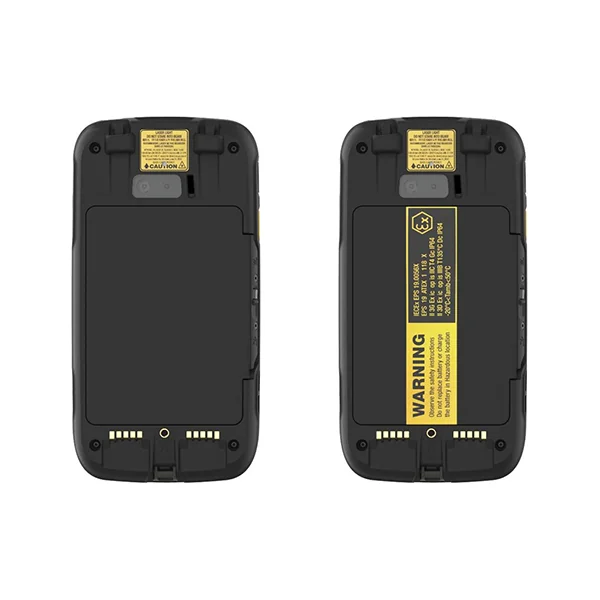
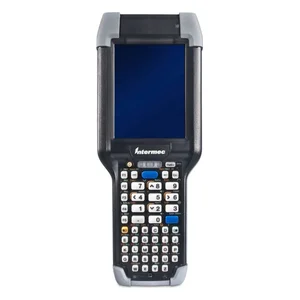
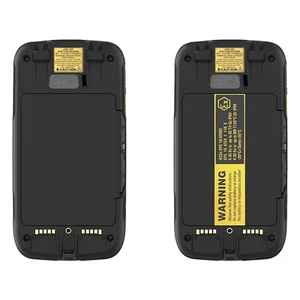
This is the non-incendive version of the CN75/CN75e. The CN75/CN75e NI can be identified by the device label verifying non-incendive certification.
Note: CN75LAN models do not include a WWAN radio. Memory Card Specifications Honeywell recommends the use of Single Level Cell (SLC) industrial grade microSD™ memory cards with the computer for maximum performance and durability. Warning: Explosion Hazard -Substitution of components may impair suitability for Division 2 Class I, II, III locations.
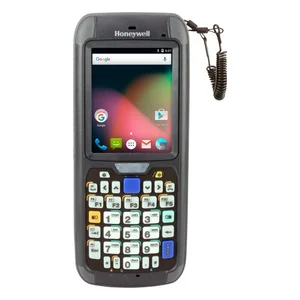
Le remplacement de composants risque de compromettre l’adaptation du produit aux sites de division 2 catégorie I,II,III. 2 Computer Features Note: Hand strap not shown. Notification LED Scan Button Microphone Power Button Battery Status LED Good Read LED Speaker Touch Panel Volume Buttons 3 I/O Cover Side Scan Button Speaker Port Battery Camera Imager (LED/Laser Aperture) Laser Safety Label Location Application Button Battery Latch SIM/microSD Card Socket (Located Under Battery) Screws 4 Detach Hand Strap Detach the hand strap to access to the back of the computer.
5 Install a microSD Card Note: Format the microSD card before initial use. Note: Always place the computer in hibernate mode and remove the battery before attempting to install or remove a card. 6 Install a SIM Card Note: Always place the computer in hibernate mode and remove the battery before attempting to install or remove a card. 7 Install the Battery The CN75/CN75e NI mobile computer ships with a Lithium-ion 3.7 V, 4000 mAH (14.8 Wh) battery manufactured for Honeywell International Inc. 8 Charge the Computer The CN75/CN75e NI mobile computer ships with a partially charged battery. Charge the battery with a 70 Series charging device for a minimum of 6 hours. If the CN75/CN75e is drawing more current than supplied by the charging source, charging will not take place.
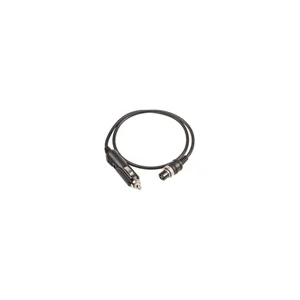
CN75/CN75e NI mobile computers are designed for use with the following charging accessories: DX1 Desktop Dock, DX2 Dual Dock, and DX4 Quad Dock and a power supply.
Utilisez UNIQUEMENT Honeywell CN75 NI batterie P/N 1000AB02 We recommend the use of Honeywell peripherals, power cables and power adapters. 9 Install the I/O Cover Remove the I/O Cover The I/O cover must be attached when using the CN75/CN75e NI in a dangerous environment. Avertissement : Le couvercle entrée-sortie doit être fi xé lorsque le CN75/CN75e NI est utilisé dans un environnement incendiaire. 1 2 1 2 10 Turn Power On The computer automatically turns on when you install the battery pack. Suspend Mode (Sleep Mode) Suspend mode automatically turns off all radios and internal devices not involved in saving the system state to save battery power when the computer is inactive for a programmed period of time.
Note: To adjust the time out limit, touch Settings > Power.
Use Hibernate Mode for Battery Removal You should always place the computer in hibernate mode before removing the battery. Hibernate mode places the computer in a low power state so that the battery can be removed for a short period of time.
After replacing the battery, press and release the Power button to wake the device. 11 About the Home Screen Navigation and Function Buttons Buttons Description Function Up, Down, Left and Right Move up, down, right or left on the screen.
Title Bar (Notification / Status Bar) Touch to access the Start menu. Tile Bar Search Bar 12 To learn more about how to use the keypad for your computer model and remap a button function, see the user guide. Modifiers Press a modifier key before pressing another key to access an alternate key value or function. Alternate key values appear on the keypad overlay near the relevant key. Modifier key shape and availability depend on keypad model types. Volume Raise (top button) or lower (bottom button) the volume of the speaker. App and Scan Press the application button (top) to open the Notes app and the scan button (bottom) to trigger the scanner. Buttons Description Function 13 Scan a Bar Code Note: For optimum performance, avoid reflections by scanning the bar code at a slight angle.
When the scanner successfully reads the bar code, the computer beeps, and the Good Read LED briefly turns on. The bar code information is entered into the application in use.
Sync Data To sync files between your CN75/CN75e and computer: 1. If you have a computer running Windows® 10, open the Phone Companion app from Start > All apps. If your have a computer running Windows 8 or Windows 8.1, the Windows Phone® app automatically opens when you connect the CN75/CN75e NI to the computer using a USB charge/communication cable. If you have a computer running Windows 7 or Mac, go to www.windowsphone.com to download and install the Windows Phone app for desktop or Mac.
In the Phone Companion app, select Windows as your terminal platform, and then set your sync preferences. In the Windows Phone app, set your phone name and sync preferences. You can always modify your preferences later by selecting Settings. To move files between your CN75/CN75e and computer without using the Phone Companion or Windows Phone app: 1. Connect the CN75/CN75e to your computer using a USB charge/communication accessory.
Depending on the Windows operating system, either open File Explorer or Windows Explorer.
Under “Computer” or “This PC”, click on the CN75/CN75e. You can now copy, delete and/or move files or folders between the computer and the CN75/CN75e or a microSD card installed in the CN75/CN75e as you would with any other storage drive (e.g., cut and paste or drag and drop). 15 Restart the Computer You may need to restart the mobile computer to correct condi- tions where an application stops responding to the system or the computer seems to be locked up.
Support To search our knowledge base for a solution or log into the Technical Support portal and report a problem, go to www.hsmcontactsupport.com.